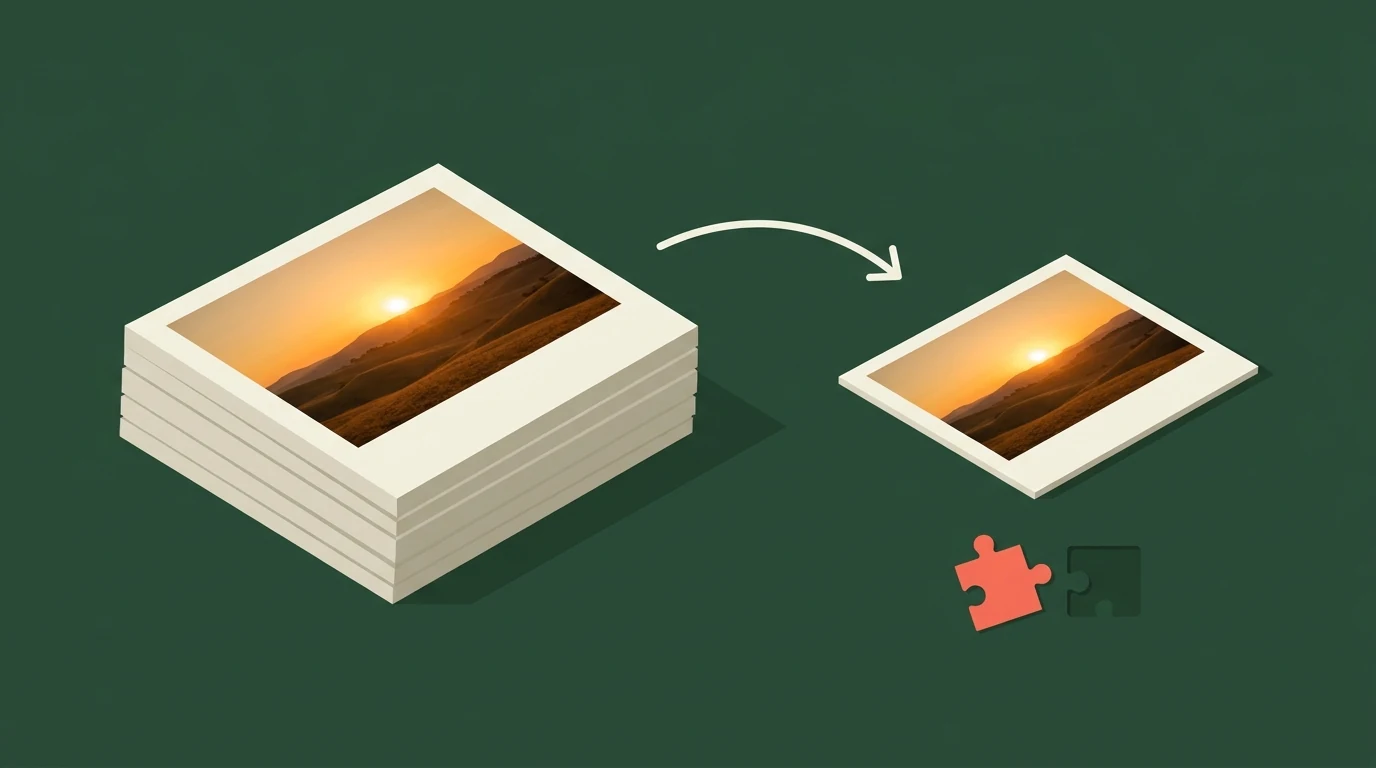
An AVIF file is a picture saved in a newer image format that is usually about half the size of
the same picture as a JPEG. Most people never choose it. You right-click an image on a website,
save it, and it comes down as .avif. Your browser shows it fine, but the photo
viewer, the upload form or the document you wanted to put it in says the file isn't supported.
The file isn't broken. The app you're using just doesn't read AVIF yet. You can either open it with something that does or turn it into a JPG or PNG, and which one makes sense depends on where the picture is going next.
What AVIF actually is
AVIF stands for AV1 Image File Format. It takes the compression from AV1, a video codec built by a group of companies including Google, Netflix, Microsoft, Apple and Amazon, and uses it on a single frame. The result is stored in the same kind of container as Apple's HEIC photos, which is why the two formats behave so similarly. The specification was finished in 2019. Alliance for Open Media: AVIF specification
Sites like it because the files are small. Netflix, which helped develop the format, found AVIF kept noticeably more detail than JPEG at the same file size. AVIF can also hold transparency (like PNG), wider colour and HDR, and short animations (like GIF), all in one format. Netflix Technology Blog: AVIF for next-generation image coding
Why you ended up with one
You got an AVIF because the website chose it for your browser, not because the image was made that way. Every time your browser asks for an image, it lists the formats it can show, and Chrome, Edge, Firefox and Safari all include AVIF in that list now. Image services such as Cloudflare, Cloudinary and Shopify's storefront CDN read that list and send the smallest format on it. The same link can give an older browser a JPEG and give you an AVIF. Can I use: AVIF browser support
It's the same thing that makes Chrome save so many images as WebP, explained in why Chrome saves images as WebP. AVIF is simply the next, smaller format on the list, so you'll see it more and more often.
photo.avif to
photo.jpg only changes the name. The data inside is still AVIF, and an app that can't
read AVIF will still reject it or call it corrupted. It has to be converted.
What opens AVIF on your device
Most phones and computers bought in the last few years can show an AVIF, sometimes after one small download. The gaps are older systems and a handful of popular apps.
| Device or app | Opens AVIF? |
|---|---|
| Any current web browser | Yes. Drag the file into a Chrome, Edge, Firefox or Safari window to view it. |
| Windows 10 or 11 (Photos, Paint) | Yes, once the free AV1 Video Extension from the Microsoft Store is installed. Many Windows 11 PCs already have it. |
| Mac (Preview) | Yes on macOS Ventura (13) and later. Older versions of macOS can't open it in Preview. |
| iPhone and iPad | Yes on iOS and iPadOS 16 and later, in Photos, Files and Safari. |
| Android | Yes on Android 12 and later, including Google Photos. |
| Photoshop | Only recent versions. Adobe added built-in AVIF support in 2025; older copies need a plugin. |
| Google Docs and Slides | No. Convert it to JPG or PNG first. |
| Upload forms (job sites, printing services, government portals) | Often no. Many accept only JPG and PNG. |
If Windows says it can't open the file, the AV1 Video Extension is almost always what's missing. Search for it in the Microsoft Store, install it, and Photos, Paint and File Explorer thumbnails will start working with AVIF. Microsoft Store: AV1 Video Extension
On a Mac with Ventura or later, Preview can also save a copy in another format: open the file, choose File, then Export, and pick JPEG or PNG. Android support arrived with Android 12. Android 12 developer notes: AVIF image support
View it or convert it?
If you only need to look at the picture, opening it is enough and you can stop there. Convert it when the picture is going somewhere else: an upload form, a document, an email to someone whose computer you don't know, or a print shop. A JPG or PNG works almost everywhere, and the person on the other end won't hit the same wall you just did.
Pick the format by what's in the picture:
- Photos and anything with a background: use AVIF to JPG. The files are smaller and every app accepts them.
- Logos, icons, screenshots and anything with a transparent background: use AVIF to PNG. JPG has no transparency and would fill those areas with white.
Both converters run in your browser, so the images aren't uploaded anywhere, and you can drop in a whole batch at once.
What converting changes
The converted file looks the same as the AVIF but will be larger, often two or three times the size. That's the trade AVIF was designed to avoid, and it's the reason sites send AVIF in the first place. For an upload or a document the extra size rarely matters. If a form has a size limit, run the JPG through Compress Image afterwards.
Converting also can't add detail back. If the site compressed the image heavily before sending it, the JPG or PNG keeps exactly what was there and nothing more. When quality matters, for printing for example, it's worth looking for the original image rather than the copy the site served you.
If you've met this problem before with photos from an iPhone, it's the same situation: HEIC is Apple's version of a small, modern photo format that plenty of apps still won't take, and HEIC vs JPG covers the same open-or-convert choice.
Turn AVIF files into JPG
Drop in one image or a batch, then download. Free, and nothing leaves your browser.
Open AVIF to JPG