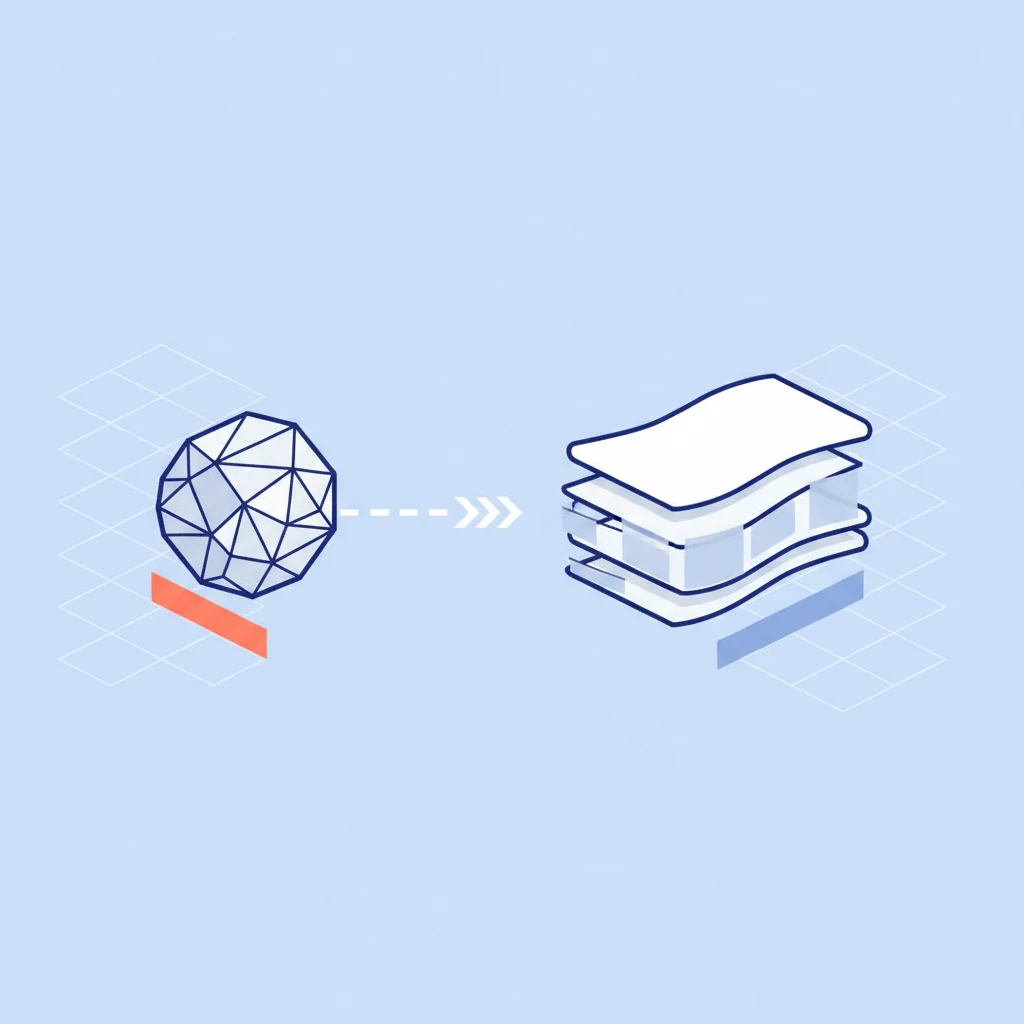
If you own an iPhone, your photos are almost certainly saved in HEIC format. But when you try to share them or open them on a Windows PC, you run into problems because most of the world still runs on JPG. So what's actually different about these two formats, and which one should you use?
Here's the short version: HEIC produces smaller, higher-quality files, but JPG works everywhere. For most people, that tradeoff matters more than any technical advantage. Below, we'll break down the full comparison so you can make the right choice for your needs.
Quick Comparison: HEIC vs JPG at a Glance
| Feature | HEIC | JPG (JPEG) |
|---|---|---|
| File Size | ~50% smaller | Larger files |
| Image Quality | 16-bit color depth | 8-bit color depth |
| Compatibility | Apple devices, some apps | Universal support |
| Transparency | Supported | Not supported |
| Multiple Images | Stores sequences/bursts | One image per file |
| Depth Maps | Supported | Not supported |
| Compression | HEVC (H.265) | DCT-based |
| Year Introduced | 2015 (Apple adopted 2017) | 1992 |
| Web Support | Safari, some browsers | All browsers |
| Editing Software | Limited support | All editors |
File Size: HEIC Saves Serious Storage
The biggest advantage of HEIC over JPG is file size. HEIC uses the HEVC (H.265) compression algorithm, which is far more efficient than the decades-old compression method used by JPG. In practice, a HEIC file is roughly 50% smaller than an equivalent JPG at the same visual quality.
This matters most on your phone. If you take thousands of photos a year, HEIC can save you gigabytes of storage. Apple adopted the format specifically for this reason. A photo that takes up 4 MB as a JPG might only need 2 MB as a HEIC file, with no visible difference in quality.
Image Quality: HEIC Has the Technical Edge
HEIC supports 16-bit color depth, compared to JPG's 8-bit. In plain terms, HEIC can represent over 65,000 shades per color channel, while JPG is limited to 256. This gives HEIC a wider color range and smoother gradients, which is especially noticeable in photos with skies, sunsets, or subtle lighting.
JPG also suffers from generation loss. Every time you open a JPG, edit it, and save it again, the image degrades slightly because JPG re-compresses the data each time. HEIC handles re-encoding more gracefully, preserving more detail through multiple edits.
That said, for everyday photos shared on social media or viewed on a phone screen, the quality difference between HEIC and a high-quality JPG is difficult to see with the naked eye. The advantage is real, but it mainly matters for professional work or heavy editing.
Compatibility: JPG Wins by a Mile
This is where JPG dominates, and it's the main reason you might be reading this article. JPG has been the standard image format since 1992. Every browser, every operating system, every app, every website, and every printer on the planet supports JPG. It is the universal language of digital photos.
HEIC is a different story. While it works flawlessly within the Apple ecosystem (iPhones, iPads, Macs), support outside of that world is spotty:
- Windows: Requires installing a free extension from the Microsoft Store (and sometimes a paid codec for HEVC).
- Web browsers: Safari supports HEIC, but Chrome, Firefox, and Edge have limited or no native support.
- Social media and websites: Most upload forms do not accept HEIC files. You'll get an error if you try to upload one directly.
- Email: Some email clients can't display HEIC attachments inline.
- Older software: Many photo editors, document tools, and design programs can't open HEIC files.
This compatibility gap is the single biggest drawback of HEIC and the reason most people need to convert their files to JPG before sharing them.
Extra Features: Where HEIC Shines
Beyond file size and quality, HEIC supports several features that JPG simply cannot match:
- Transparency: HEIC can store images with transparent backgrounds, similar to PNG. JPG has no transparency support at all.
- Multiple images in one file: A single HEIC file can contain a burst sequence, a Live Photo (still + video), or multiple exposures. JPG is strictly one image per file.
- Depth maps: HEIC can embed depth information from your iPhone's portrait mode, enabling the background blur effect to be adjusted after the photo is taken.
- Non-destructive edits: HEIC files can store editing instructions alongside the original image, so you can undo changes without losing quality.
These features are part of why Apple chose HEIC. It's not just a photo format; it's a container that can hold rich, layered image data.
When to Use HEIC
HEIC is the right choice when you're working within the Apple ecosystem and want to save storage space. Specifically:
- You primarily use Apple devices (iPhone, iPad, Mac) and share photos via AirDrop or iCloud.
- You want to maximize the storage on your phone without sacrificing photo quality.
- You use portrait mode and want to preserve depth data for later editing.
- You don't frequently share photos with Windows users or upload to services that reject HEIC.
If your photos mostly stay on Apple devices, there's little reason to switch away from HEIC. It gives you better quality at half the file size.
When to Use JPG
JPG is the better choice any time your photos need to leave the Apple bubble:
- Sharing photos via email, text, or messaging apps with non-Apple users.
- Uploading images to websites, social media, job applications, or online forms.
- Sending photos to a print service.
- Working with any photo editing software on Windows or Linux.
- Building websites or creating content for the web.
In practice, this covers most situations where your photo needs to be seen by someone else or used outside your own devices.
The Verdict
HEIC is the technically superior format -- it produces smaller files, preserves more color detail, and supports features like transparency and depth maps that JPG cannot. But JPG remains the most practical format for sharing because it works everywhere, on every device, in every app. For most people, the best approach is to keep your iPhone set to HEIC for storage efficiency, and convert to JPG whenever you need to share, upload, or use a photo outside of Apple's ecosystem.
How to Convert HEIC to JPG
When you need a JPG, converting is quick and easy. You don't need to install any software or create an account anywhere.
Related HEIC Guides
Convert HEIC to JPG Instantly
Drop your HEIC photos into our free converter and download JPGs in seconds. Everything happens in your browser -- your photos are never uploaded to any server.
Convert My PhotosWith FilePulp's HEIC converter, you can drag and drop one photo or an entire batch. The conversion happens right in your browser, so your photos stay completely private. There's no file size limit, no watermark, and no sign-up required.
You can also change your iPhone's default photo format to JPG by going to Settings > Camera > Formats and selecting Most Compatible. Keep in mind that this will increase the storage your photos use, so converting on an as-needed basis is usually the smarter approach.